Monday, October 6, 2014

Fixing Terrible Soldering Job on a USB Hub

/***** WARNING *****/
DO NOT BUY A 7-PORT USB HUB FROM LINK DEPOT, AND COMPANY NAME IS: SHENZHEN HEXING.

What the box looks like, I wouldn't buy one


It is the worst quality I have ever seen!

Ok, so I'll keep everything I say rated "PG-13" and not say what I want to, but this was very irritating to get a product and have such low quality of manufacturing.  This is going to be more of a rant/warning that a tutorial.

I got this USB hub because I needed more USB ports to use for my Raspberry Pi, which only has 2, which are being used by a keyboard and mouse; I needed one more for file exchange.  Lots of USB hubs support Windows and Apple, but few mention Linux support.  I was wary getting one online and waiting a long time, so I saw one at my local Fry's and it looked good...on the outside...


To start off, the box itself was broken(!), I don't know how or why, but it's terrible quality control.  It was chipped and broke open when I tried to insert a USB stick into it!  Then thinking well, I might as well look at the PCB since the box is open know, what harm could be in that?  A LOT of harm!  Looks like someone deliberately tried to make a terrible quality product.

Note the holes in upper left and going across


The pins for the 5V DC power connector *WEREN'T EVEN FULLY SOLDERED*, as in one had no solder at all!  5 holes in total were on the board, atrocious soldering.  Also looked like someone burned the board a bunch of times or scratched it.  Then the LED was glued so cheaply to try and secure it in place; didn't work at all, terrible craftsmanship.

In short, it looked like a homemade hack, not an engineered product fit for commerce.

So to fix this disaster as best as I can, I want to at least fill in the missing solder holes.  The hub still powers up and works, but just looks terrible and may malfunction eventually somehow electrically due to terrible quality.

Tools needed:
--Solder iron and solder

1) Using basic soldering techniques, hold the hot iron on the corner for a few seconds, then push solder on and let the solder fill in and remove when it looks like a "shiny volcano" of metal.  That's it, repeat for the remaining holes.  In my case I had to use a lot of solder to fill the massive holes they left.

Hard to see, but bottom right is a well solder joint


Top, again hard to see...


2) Since the box won't hold together and come apart anytime I try to push in a USB stick, you have to glue the box together with a glue gun or you can wrap a few strong rubber bands around it.

Fixed PCB, still looks bad
Apologies for the bad pictures, I may re-do them at a later time, with a better camera and lighting.  Be careful when getting barebones cheap electronics from China, I've been burned other times before and some people have even *died* from fraudulent power supplies.  That is very evil and criminal and should never happen in this day and age.

Fixing Too-Small Screw-holes on 3D-Printed Box

Way back a couple years ago, I thought I'd ask my professor if I could design a 3D-printed enclosure using software we had just learned to use (Pro-Engineer, which from what I've heard isn't the best software to use for CAD-projects).  The response was yes!  So I set out measuring my passive-infrared (PIR) kit I'd gotten earlier and thought on how to make the design to hold a speaker and the PCB well.  The kit just takes 5V in and activates a speaker during detection (a "ding-dong" noise).  Took a lot of measurements, and a mistake I made was that I didn't look for proper screw sizes BEFORE designing the screw holes; I assumed I'd be able to find a screw that would work easy.


I won't be sharing the files for the box, but the box is simplistic enough (by design) to be able to copy easily if you want, it doesn't matter to me.  I was pushing for symmetry about the "Y-axis", as in you could fold it over and it would be the same.  I really liked being able to see the precision of working with CAD software and re-creating that with a 3D-printer.  It's better to see in person, but you can see some of the tiny edges that were needed for the screen on front and holding the speaker in the back.  The speaker would sit behind the PCB and be held in by that strip of plastic you see in the middle of the circle.  The PCB would be screwed in and held up by those 4 circles.

 Didn't come out perfectly though, measurements were slightly off ever though I painstakingly measured again and again.  Screw holes didn't line up and were too small.  So some advice for the readers, make sure the parts you need exist (or are easily found) BEFORE you design something needing those parts.  Sounds like common sense, but you may make the same silly mistake in the haste of trying to get things done.

Tools needed:
--Dremel tool
--Mounted pillar drill
--Wire cutters (for bits of hanging plastic)
--Proper diameter and length screws (whatever needs for your project)
--Fine-toothed hack saw

1) Started off thinking this was a job for the dremel tool, in the process learning that a dremel (at least the one I have) isn't very good for plastic.  For starters, it melts plastic and gets stuck on the drill bit and hardens to very difficult-to-remove plastic on the drill bit.  It's best to use a more powerful drill, like a mounted pillar drill; it just works better/quicker.

Be cautious and wear safety glasses when working with a pillar drill as the plastic still melts to the drill bit and then flings off at high speeds.

I also needed to make the bottom part a little bigger for the power wires at the bottom.  Found the best way to do that was using a hack saw, making a bunch of cuts close together, then coming in with the pillar drill to cut out the pieces.

2) After drilling out all the outside holes and testing the screws I had on hand (size 6, 1.5 inches long), I had some other screws that fit easily for holding the PCB in place.  I only needed to put in one here as the PCB already fit snug and if there are any problems (highly unlikely unless someone hits it hard) I can always drill out the PCB a little to make up for my faulty measurements on the screw holes.


3) After securing the PCB, make sure the screws fit snug on the outside and you can tighten and loosen them repeatedly with no problem.  The solid plastic print (you have an option to do a "solid print" or a "hollow print") for 3D-printing held up moreso than I thought it would.  The drilling likely melted some of it around the screw holes, making it slightly stronger for screws.

That's essentially it, just some manual work, it'd be better to see if I could film what I'm doing as I don't have pictures using the drill (probably a bit of a safety hazard to try filming yourself and using a drill :p) but that may come at a later time.  Also, I was having some issues for the first time with my camera and I couldn't get the best pictures.

Regardless, here's the put-together final product:


Sunday, October 5, 2014

Installing Adobe Flash to LiveUSB Kali Linux

This tutorial will be very easy and straight-forward, documenting it here mostly so I can find it quickly if I need to.  For the most part, you can get away these days without having to install Adobe Flash Player (notoriously bad for allowing all kinds of malware to take over your computer).  However, a website that is used by my school for doing homework, requires you to have Adobe Flash installed (just for certain parts, I could still get around that requirement to get credit).

So we can mitigate this risk by using a Live system, that is one that runs in RAM and has all bootloader/kernel/config files on either a CD/DVD or USB-stick. Using Adobe Flash for whatever reason you have to, then the download gets stored in RAM and is promptly wiped on shutdown.

Note that there is already a tutorial (which I did but was way more painful than this simple method), but there's a much easier way to get what you need. 

http://lewiscomputerhowto.blogspot.com/2013/10/how-to-install-adobe-flash-player-in.html

Don't laugh at how easy this is, ok? :)

Tools needed:
--Computer capable of running Kali Linux (likely most other linuxes too) with decent amount of RAM (1 GB let's say)
--An internet connection

1) Open up a terminal, type: "apt-get install flashplugin-nonfree"


You will see quite a bit of activity, lots of files downloaded.  Takes about 30 seconds to a minute to complete.

2) Once downloaded, update the plugin by typing: "update-flashplugin-nonfree --install"

That's all there is to it!  Be mindful of the spacing!  Very simple and painless and you can go do whatever you need with Adobe Flash and then shutdown to erase it (which you can verify by trying to access sites requiring Flash).

Monday, September 8, 2014

Removing Laptop WIFI Card and Camera/Microphone

So I've had some problems in the past with my Wifi/Bluetooth card and in turn the camera/microphone.  For some reason, when I didn't want any Bluetooth communications, it would turn on.  Trying to turn it off would be beyond my control.  I can end that problem by reinstalling Windows (which removes drivers) and not re-install Bluetooth drivers, and that seemed to work pretty well.  Sometimes though, I like to have an "air-gapped" computer, which means that the computer doesn't have any means of connecting to standardized communication protocols (TCP/IP, 802.11, Bluetooth LE, etc.).  For instance, if you are generating cryptographic keys on your computer for let's say PGP emails, you want to be sure that you aren't leaking those keys to a network somewhere.  There are of course still ways to capture data, but these require specialized knowledge and tools and this is a whole other topic of TEMPEST/EMSEC in computing which I won't get into today.  Removing the Wifi card is a big step.

Also I'm not much of a Skype user or a big "selfie" kind of guy and don't really have a need for a camera/microphone on my laptop.  It's just a security risk and unnecessary bloat on my computer as far as I'm concerned and there have been instances of voyeurs using malware to capture intimate moments when someone left their laptop open in their bedroom...

So if you're like me and don't need to have all this connectivity on every device you own, we want to modify that.  The laptop being used in the tutorial is a Fujitsu Lifebook A-Series.


List of Materials:
--Laptop
--Knife or paint scraper
--Screw driver
--Wire cutters

Most of the tutorial is using your hands to pry open lots of areas, very manual-intensive project.

To start, here's my working computer with the Wifi card:


1) Now flip over, take out the battery and begin taking out a lot of screws.  I won't even circle them all in pictures, there's something like 23 screws just for the exterior to be able to pry apart the plastic cover.  So just be cautious and keep track of every screw you take out.  Take out the hard drive too, it's about a 3X4" rectangle near bottom left in the picture; should slide out pretty easy.

2) Now once you're certain all screws have been removed, you can pry open a fairly large plastic cover on the bottom.  It takes a little bit of "elbow grease" to get off, and I was intially worried about breaking it.  But it will snap out.  JUST MAKE SURE YOU HAVE ALL SCREWS OUT or you may break some plastic.  Luckily for Fujitsu laptop owners, the Wifi card is right there (my finger is pointing to it).  It's held in by 1 screw and the antennas just popoff and you can pull it out.


3) However the antenna disappears to the other side and I don't want to leave that in.  Can't be yanked out.  Also at this point take out the CDROM too before you go to the other side.  There is one screw holding it in and you can use a paper clip or thin-metal object to insert in a hole by the outside to open it and just pull the unit out.


4) Now flip over to the front of the laptop.  You can pry open the speaker cover with your prying-tool of choice (needs to be thin enough) and pop that cover off.  You will see the underside of the power button and a couple speakers, as well as the hinges for the LCD screen and the screws needed to remove it.  Also you can pop out the keyboard BUT BE VERY CAREFUL as I popped out the thin cable for the keyboard and nearly needed to go to a repair shop.  You really don't need to take out the keyboard for this though, but you might as well take a peek now anyway if you want.  The Wifi antenna continues on up the right hinge up into the LCD screen, so we need to remove that.


5) Now there's 2 screws holding the screen to the computer, take them off and lift up the LCD screen.  You can pull the antenna thru so the screen can be completely removed.  Again, be cautious and patient so you don't end up need a new LCD screen.


6) There's 4 screws on the outside corners of the screen, which are covered up with black rubber bumpers.  You have to pop those off and unscrew the screws.  Prying it open carefully, you can see the antenna going up the right side.  Keep pulling it out and moving up to the embedded camera/microphone at the top of the screen.  There you'll see the antennas soldered to be held in place and the 2 antennas aren't the same size.  Snip them off with wire cutters and you got all the antennas.  Down the backside of the LCD is where the camera/microphone get power.  I simply snipped that with wire cutters and pulled out the camera/microphone.


7) Here's the removed components, antennas, Wifi card, and camera/microphone.  It's an Intel Centrino Wireless-N-1030 module with Bluetooth.  I don't know what brand the camera/microphone is.

[PDF WARNING]

http://www.intel.com/content/dam/www/public/us/en/documents/product-briefs/centrino-wireless-n-1030-brief.pdf


8) And now you have to reverse everything you did and put everything back together.  You should do it as soon as possible and not put it off because you may forget some things.  Here's my laptop working again, and hmm..It was having trouble finding the Intel Wireless card, huh..weird. :P  Connecting to wifi is still possible with the multitude of wifi-USB modules that are available, I have an old D-Link one and I just needed to download a driver from a website (on another computer of course!).  And now I can connect to wifi when I want and have a reasonable assurance that when I don't want to, it's close to not possible.  Speakers stayed in but I may remove them too in the future.  Be safe and protect yourself.


Monday, August 18, 2014

Installing Puppy Linux to Hard Drive

I was having some trouble that I felt was unnecessary, trying to install Puppy Linux to a hard drive (HDD) on an older computer.  The Puppy Universal Installer makes it easy, but I was messing something up.

This post assumes you just want Puppy Linux on your HDD, so no partitioning to make it simpler (I would recommend this to only PC's you keep off the internet).  Otherwise, you would have to use a program like GParted and partition your drive how you want (maybe even encrypt for extra security).

Before you begin, first you should already have a copy of bootable Puppy Linux on a USB stick or CD/DVD, previous posts show how to do that and the procedure stays the same mostly and is pretty easy.

You need to check the type of your HDD as Puppy Linux will ask you in the Universal Installer.  Check to do the Full Install and not Frugal (unless you want to use the HDD for something else, putting Puppy Linux on a HDD is assuming the computer is old and can't run much else with modern speed and convience).

These parts were all pretty self-explanatory.  What's tricky is after you get done.  DO NOT DELETE THE TEXT FILE THAT COMES UP AFTER INSTALL.  You need it.  Set up Grub4Dos and install on the MBR.  Mostly point and click setup that's made easy for you.  Now, *IF* you have a IDE-base HDD, you should change the line in the menu.lst file.  Otherwise the install won't work.  It's about 3 lines.  Copy the lines from the text file and paste into menu.lst.

This should work and you should be able to boot Puppy Linux from your HDD now.

Questions in the comments if you have any.


Simplified USB Wiping Via Linux Command-Line

Method taken from: [ http://www.pendrivelinux.com/restoring-your-usb-key-partition/ ]

They have a universal live USB-stick program that works in windows very easy and consistent (which means there's code bloat that you don't need, but it's OK to get to simpler OS's)

1. Note any drives you have plugged in.
2. Plug in stick and note drive letter (sdx) x being some letter.
3. Open terminal and type "fdisk -l", that's a lowercase "L".
4. Type "fdisk /dev/sdx" (replace x w/ drive letter, don't add the number if there is one)
5. Type "d" to delete partition.
6. Type "1" to select 1st partition (and go thru typing "d" and deleting all partitions)
7. Type "n" to make new partition.
8. Type "p" to make partition primary.
9. Type "1" to make it first partition.
10. Press "enter" to accept default first cylinder. If there's a virus in those 2000+ blocks, you can't solve that yet if you're doing this. Start somewhere, practice, research, learn, and kill the malware eventually; but not yet. Press "enter" again to accept default last cylinder.
11. Type "w" to write new partition to USB-stick.
12. Type "umount /dev/sdx1" (again replace 'x' w/ drive letter).
13. Type "mkfs.vfat -F 32 /dev/sdx1" (again replace the 'x'). Had a little hiccup on my end when messing around, doing "mkfs.vfat -t /dev/sdx1" got me back to reading the USB stick again for unknown reasons.

You can load the drive w/ whatever massive file[s] and then delete again if it makes you feel better. If you're up to it, try to learn the actual (likely C) code and corresponding Assembly code (you can keep going deeper if you want) and find compilers/assemblers you trust or make one yourself if you're truly badass.


/***** NOTE *****/

It may help to use the "Format" utility in the OS first too.  But this procedure works pretty good, just not 100% as there's still all sorts of weird things that can happen and this uses less code than downloading another program to do everything for you automatically (and not doing a full wipe perhaps).

Making a Simple "Robot" From 3V DC Motor and Switch

This tutorial came about as I made a promise to a friend to make her a "robot".  My initial plan was to gut a computer mouse and make one of those robots you see here:

http://www.instructables.com/id/PC-Mouse-Robot/

That didn't pan out well because of size constraints and I didn't want to spend a lot of time on this project.  So I went and got a little AA battery pack as the motor that I'm using is a 3V one from a broken shaver (the motor still worked for some reason).

I also had this I believe is capacitive touch module that was given to me, and it lights up.  Hope the battery in it lasts for a little while longer as it's sealed in there pretty good.

I decided to just do a simple switch on and off, which will spin the mouse's face.  Pretty silly, eh?  Well, hopefully it'll make someone smile...

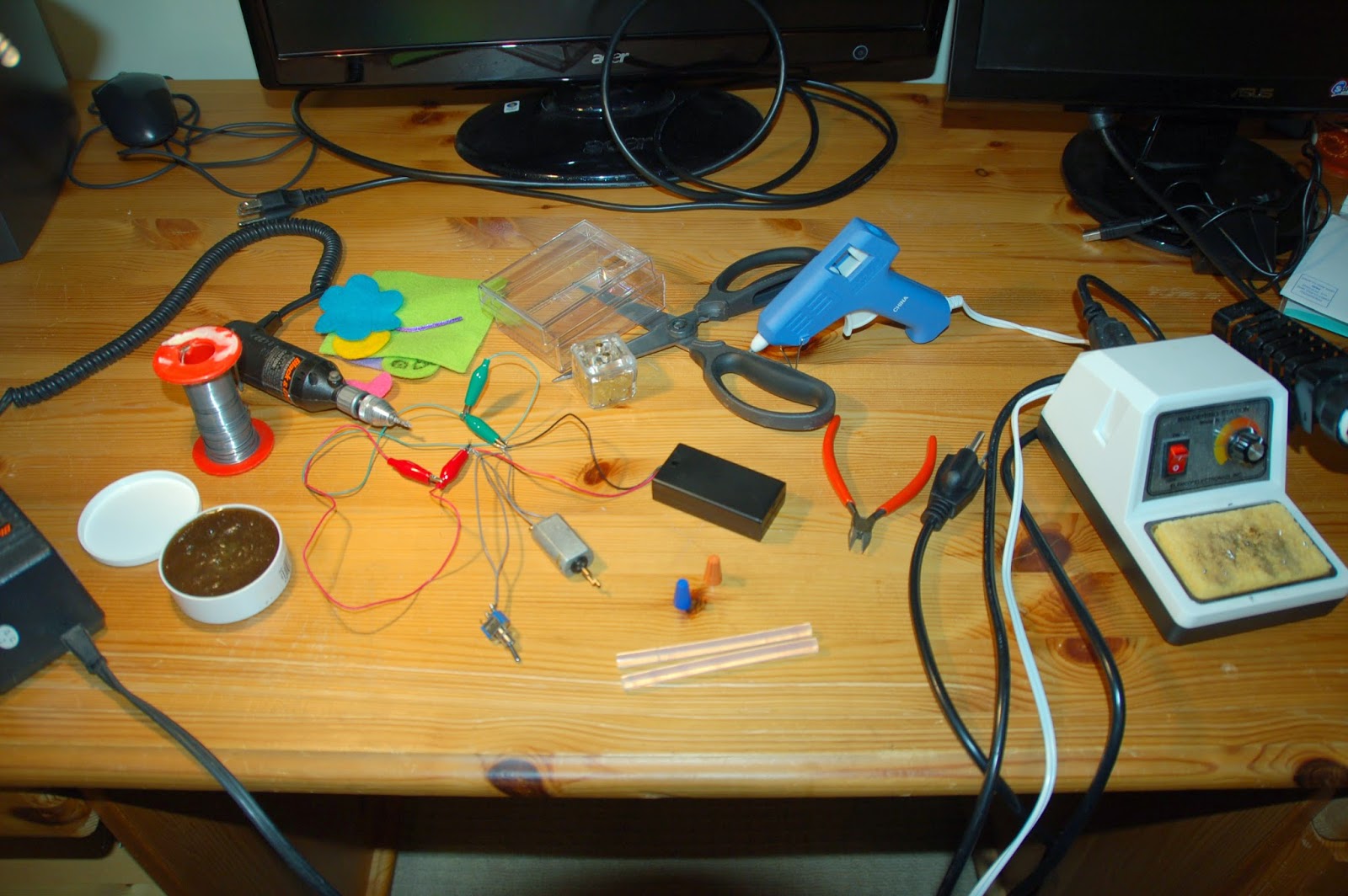
Materials needed are quite a bit for what is mostly an "arts & crafts" project:
--Glue gun
--Plastic box
--3V DC motor
--AA battery pack for 2 AA's
--Soldering iron / solder
--Felt materials, anything decorative
--Wire cutters
--Dremel tool
--Foam with sticky side
--A switch
--2 twist-on wire connectors
--Scissors

1) Plan your layout, and dremel holes into the plastic box.  Make note of dimensions and how things will fit was all packed in.  I didn't get really specific here, just a lot of "eyeball" measurements.

2) Connecting the motor, switch, and 3V from the batteries is fairly straight forward.  There's 3 leads off the switch, the power source goes on the 2 exterior leads.  If you only have one power source, you can leave the other outside lead blank.  And ground (technically the "relay") is the center lead.  Hopefully your motor marks (+) and (-), otherwise just find that out before you begin placing it in the box.  All 3 wires can be twisted together with a twist-on wire connector.

3) Add any decorations you want, mine's pretty silly and pretty bad.  I'm no artist. :p

4) Drill out a hole for the motor and I just glued the mouse's face to the end, so it should spin in circles really fast.  Drill out a hole for the switch, and I applied copious amounts of glue to hold it in place.

5) I left the battery case unglued in the event batteries need replacing.  It's held mostly in place by the motor and some more foam pads.

/***** WARNING *****/

This design has issues that have yet to be resolved.  Testing showed that the circuit was OK, but final product showed it clearly wasn't.  Batteries get discharged extremely fast and get really hot (can burn you).  This means that there is resistance somewhere in the circuit allowing this leakage, or a fundamental flaw in my circuit (I tried to keep it as simple as possible).  I heard that it could be a bad switch, which is frustrating.

So, be sure to test your circuit extensively.  And a good-looking and functioning "robot" won't turn out on the first run usually.